So it’s Flu Season again, and this recipe for Tea To Fix What Ails You was given to me by a Christian friend, and I’ve taken to calling it JESUS TEA due to it’s miraculous properties. Even though it, technically, contains no tea. This tea is as caffinie-free as anything processed in a US plant can get, but be sure to check the provenance and all ingredients in case of allergies.
You will Need:
A Bigass Pot, becuase this is something you make in large quantities
working stovetop
those lil cloth sachets you use for wassail/empty teabags/those lil reuseable loose-leaf tea steepers.
Recipe:
about a quart of water
1 cup apple cider
about half a lemon’s worth of juice
a shitwhack of honey- try to get as local as possible and generally the less-processed the better if you want to build a resistance to local allergens. If you have allergy concerns or don’t like the taste of honey, go ahead and use more processed stuff/another sweetener instead.
three tablespoons/three bags chamomile tea
three tablespoons/three bags rooibos tea
teaspoon crushed cloves
1 cinnamon stick (more if you like it spicier)
¼ tsp nutmeg
1/8 tsp cayenne or white pepper
Bring water to a simmer in the pot. Add the chamomile, rooibos and spices to steep about 4-5 minutes or longer if you like tea-flavored tar which given you have the flu you probably do. Add Cider, Lemon Juice and Honey until dissolved. Drink all of this in the course of an hour to stay hydrated, make more pots as needed or until you pass out.
FOR MAXIMUM EFFECTIVENESS: gargle warm salt water first for as long as you can, it’ll break up the mucus in your throat and soothe the soreness.
literally most things that people write off as just ‘textures’ to use in graphics are stolen & unsourced material created by artists or photographers NOT meant to be used as elements in projects without royalty payments. you can say ‘it’s just random tumblr posts they don’t care’ but you wouldn’t want someone to take your work and edit into their work so they can be praised for their beautiful style and creativity even if they just post it on social media w/o profit, would you?? so maybe if you browse pinterest or google images for pictures without finding the original source, you’re using images that you’re not allowed to use without realizing it.
you see it on here a lot especially in (i won’t link anything but i’m sure you know what i mean) those album track ‘aesthetics’ posts, au ‘aesthetic’ posts (you see these less in kpop, but where people use non-royalty free images to kinda craft a visual au), and even just rather typical graphics that have a lot of ‘texture’ elements. and texture packs too!! that’s often where the problem starts; people just collect images (often literal art), compile them in a folder w/o sources, then insist no one can repost those images w/o crediting the person who compiled them. what???
SO may i suggest some of my fave places you can get FREE, ROYALTY-FREE elements that are totally legal to use
i saw a post on my dash with image sites that basically was like “it’s okay to use pictures off pinterest etc. for your edits because it’ll be hard for the original photographer to find and sue you,” which, um, made me a bit annoyed, so here is a list of 100% free stock photo sites, many of which have quite aesthetic-y photos! please do not steal photos in your work, guys!
From this post are the following links, placed into different categories (best/ very good/ good/ okay, with explanations why. Not sure how active all of these are atm.
subtlepatterns – tiling images (transparent png files with a variety of. well, patterns.)
transparenttextures – haven’t used this at all but it was saved in my drafts so idk how it works. however, since it has built itself up “standing on the shoulders of subtlepatterns” I’m assuming these are also transparent png files that tile.
unsplash – free photography. high res, completely free, no need to credit, although their license page mentions that credit is appreciated.
depositphotos– free registration to get “royalty free stock photos, vector images, and videos”. Though it’s subscription based, you can get “free files of the week” and the free photos consist of randomly(?) picked stock imagery/footage, though this is through their weekly email promo thing.
creativecommons – search the creative commons and find work you can use for your thing. Just make sure that the specific CC license attached to it is appropriate for your work.
Good luck! If you really want a specific photo that’s behind a price tag, please consider paying the money or finding another option. These artists who create these photos are having a hard enough time making ends meet.
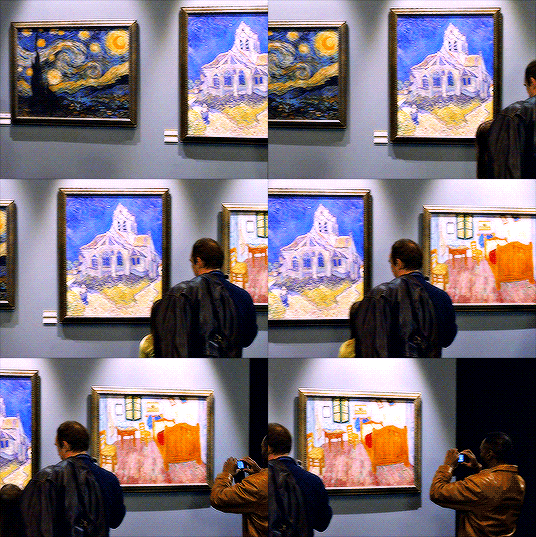
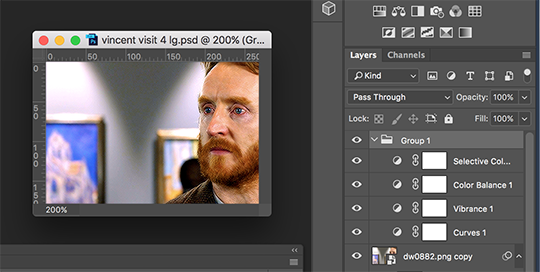
A few people have asked me how I colored Vincent and the Doctor. I don’t use downloaded psds, so every one of my gifsets is built from the bottom up. The thing about Doctor Who is that it’s a very colorful show to begin with, so very little goes a long way, and it’s a great example for basic coloring and understanding how color works with gifs. The above gifs are from 2 different sets from the same episode, 3 of them coming from this set [x]. I’ve also added the interior of the Eleventh Doctor’s TARDIS, since people complain about it being difficult to color without exploding in grain, and I’ve colored it with the same method.
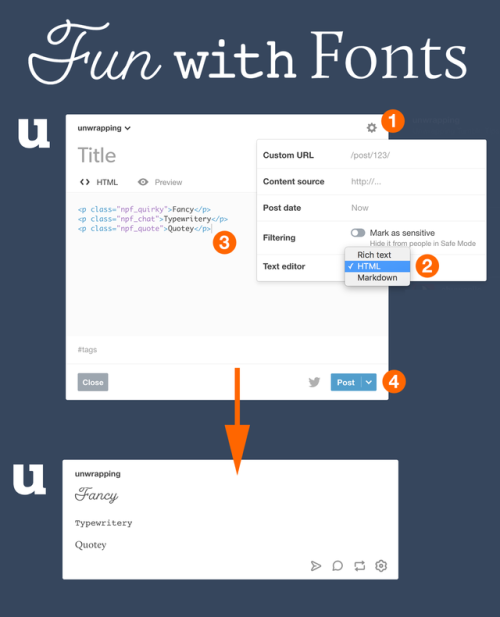
To use Tumblr’s new fonts, create a text post. 1) Click the gear icon. 2) Change the Text editor to HTML. 3) Use HTML paragraph tags around your text as follows. (The Preview won’t show the fonts at this time.)
Fancy
Typewritery
Quotey
4) Publish (or save draft) to see the fonts on your post via the Dashboard. (The Tumblr Official theme also shows the fonts on text posts.)
REDACT THAT LAST POST I JUST MADE THE ANSWER IS HERE
Short answer, I’m really fast and I have a very fast computer!
Instead of giving a long answer though, I thought I’d give a few tips on how I do it, since this is a question I’m asked quite often, so what the hell, I’m gonna share my wisdom :)
The following tips are very useful and will 100% cut your time on photoshop of a significant amount… Though I want to stress on the fact that it’s having a lot of RAM on your computer that’s going to make the real difference on how fast you can be.
How to be faster when you gif:
I’m not sure how important it is to other people, but I’m very organized. When I’m making a gifset, I put the screencaps in different folders for how many gifs I’m making. That’s helpful for several reasons (it’ll be relevant a couple of points down too), but also cause I know how many more scenes I need to capture to complete my gifset, and I directly have a general idea of what the gifset is going to look like.
Related to that, I usually keep on my computer, on a pendrive and on a HDD the screencaps of some of the scene I use the most/I can possibly use in the future. They’re all in different folders, some named by character, some by fandom, some by episode, some by colour. This is very useful cause I don’t have to go and capture them again and again, wasting time. (Say, I gif Tony Stark quite a lot, I have most of his scenes already saved. It saves me A LOT of time!)
I use potplayer for capturing frames. Using that, or whatever app you have (I had kmplayer before) is way faster than using photoshop to do it.
I always capture the screencaps before I open photoshop. I usually keep the 2 phases separated. It’s mostly habit by now, cause my old pc was much slower than the one I have now, and this is especially helpful if you don’t have much RAM, cause as you know, ps runs on RAM, and will eat as much as you give to it. If you have other stuff open at the same time while using ps, it’s gonna make your pc and the whole process really really slow.
Following that, you can actually up the amount of RAM you can dedicate to photoshop! Go on Edit -> Preferences -> Performance! Remember not to overdo it though, especially if you plan on using other apps while you work on pc! I keep mine at 70% (so I have 10gb of ram dedicated to ps, now you see why I’m fast.)
Uploading screencaps as multiple DICOM files is much faster than loading files into stack! The main difference is that you can’t pick and choose which files to load, but you can only load folders (hence my putting everything into folders I said above!)
Now, the best advice that I can give you, the one that will change everything and really make everything so much faster: make actions, use actions!
Seriously! I’m the laziest person you’ll ever going to meet, so I made myself an action for literally EVERYTHING. Why? Cause a lot of the work we do on ps is repetitive and we end up doing the same things over and over for 8, 10, 20 gifs. Making frames from layers, setting the animation delay, resizing, sharpening…. It’s always the same things, but we waste so much time to input all those commands!
I made myself an action for making frames and setting the delay. I have several other actions for resizing in the dimensions I use the most (like I have an action for 268p x 140p, one for 268p x 170p and so on). I have another action for sharpening. That means that the only thing I need to do is hit play and that’s it. In a couple of seconds everything is done and I have the gif ready so I can start the fun part: colouring it.
I don’t know why but it always takes me way less when I use actions than when I have to input those commands by hand. A+++, best thing I ever started doing, would totally recommend you try it!
I don’t have much time myself, love, that’s why I keep everything organized and ready to go, so I can gif on my breaks, and I don’t have to be more frustrated than necessary (and god knows how frustrating colouring can be!)
I have the advantage of having a pc and not a mac, so I can use potplayer directly and not waste any time converting my videos in acceptable formats that quicktime can read (kudos to mac users who spend so much time on that omg how do you do it!)